How to Clean a Computer or TV Screen Without Streaks: The Complete Guide
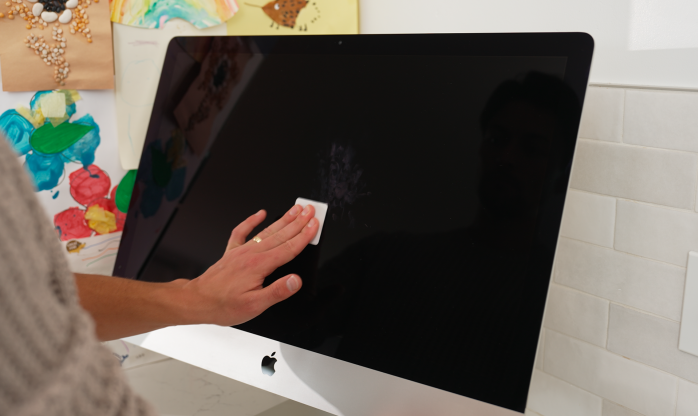
You wiped the screen. Now there are more streaks than when you started. If you've been there, you're not alone — how to clean a computer screen without streaks is one of those tasks that seems simple but goes wrong surprisingly often. The issue is almost never the dirt itself. It's the cloth, the spray, or the technique that turns a dusty monitor into a smeared mess.
This guide covers everything: why screens streak in the first place, what's safe to use on each display type, and a step-by-step method that works whether you're cleaning a $300 budget monitor, a flagship OLED TV, or a touchscreen laptop. No guesswork, no expensive proprietary cleaners required.
Why Screens Streak in the First Place
Before jumping to solutions, it helps to understand the problem. Streaks appear for a few consistent reasons:
- Residue from the cleaning solution. Many household sprays — including glass cleaners — contain ammonia, alcohol, or surfactants that leave a film behind as they dry. That film scatters light and creates the hazy streaked look you're trying to avoid.
- The wrong cloth. Paper towels, toilet paper, and standard cotton rags are far too coarse for modern display coatings. They push debris around rather than lifting it, and may scratch anti-glare or oleophobic coatings over time.
- Too much liquid. Moisture that seeps into the bezel or under the screen edge can cause water marks, and in the worst case, damage the display panel itself.
- Circular wiping motion. Going in circles redistributes oils and dust in arcs across the panel. Those arcs show up as streaks under certain lighting angles.
- Wiping a warm screen. Heat causes cleaning solution to evaporate unevenly, leaving mineral deposits and residue behind.
Fix any one of these and your results will improve. Fix all of them and your screen will look factory-fresh.
Know Your Screen Type Before You Clean Anything
Different display technologies have different coatings, and what's safe for one can permanently damage another. This is the most important thing most guides skip over.
LCD and LED Monitors (Most Common)
Standard LCD and LED monitors — the kind found on most desktop setups and budget to mid-range TVs — typically have a matte or semi-glossy surface with an anti-glare coating. This coating is surprisingly easy to damage with abrasive materials or strong solvents. Avoid anything with alcohol concentrations above 70%, ammonia-based cleaners, and acetone. Distilled water or very diluted isopropyl alcohol (50% or less) applied with a microfiber cloth is the safest approach.
OLED Screens (TVs and Monitors)
Learning how to clean an OLED screen correctly matters more than most people realize. OLED panels are exceptionally thin and sensitive to pressure. Never press hard — even moderate pressure can cause permanent pixel distortion or "pressure marks" that don't fade. OLED screens also tend to have a glossy, reflective surface that shows fingerprints prominently. Use the lightest touch possible, always dry-wipe first, and only introduce the tiniest amount of moisture if absolutely necessary. LG, Sony, and other OLED TV manufacturers explicitly warn against liquid cleaners in most of their documentation.
Anti-Glare and Matte Screens
Anti-glare coatings are chemically delicate. Alcohol and ammonia — even in low concentrations — can strip the coating progressively, leaving glossy "worn" patches that are impossible to reverse. If your monitor has a matte finish, stick exclusively to distilled water on a high-quality microfiber cloth. Dry wiping alone removes the vast majority of dust and light smudges without any risk.
Touchscreen Displays (Laptops, All-in-Ones, Tablets)
Touchscreens are coated with an oleophobic (oil-repelling) layer that reduces fingerprint visibility. This coating wears off naturally with use, but harsh chemicals dramatically accelerate that process. Never use window cleaner, bleach-based wipes, or acetone on a touchscreen. A dry microfiber cloth handles most daily maintenance; for stubborn smudges, a lightly dampened microfiber (distilled water only) is safe.
MacBook and iMac Displays (Nano-Texture and Retina)
Apple's standard Retina displays are cleaned the same way as general LCD screens. However, the optional nano-texture glass on some iMac and Pro Display XDR models is an entirely different story — it requires only the specific polishing cloth Apple includes with the product. Using any liquid or standard microfiber on nano-texture glass will cause permanent hazing. Apple makes this very clear in the product documentation.
Can You Use Windex on a Monitor?
This is one of the most searched questions about screen care, so let's answer it directly: no, you should not use Windex on a monitor or TV screen. The original Windex formula contains ammonia, which is highly effective at cleaning glass windows but destructive to the specialized coatings on modern displays. Even Windex "Electronics" or "Multi-Surface" formulas that claim to be screen-safe have generated mixed reviews — many users report a residue or haze after use, and several display manufacturers explicitly void warranties if ammonia-based products are used.
The same caution applies to:
- Any glass cleaner containing ammonia or bleach
- Rubbing alcohol above 70% concentration (the extra alcohol leaves residue)
- Baby wipes or wet wipes (contain fragrance and moisturizer additives)
- Dish soap on a cloth (leaves a soapy film even when rinsed)
- Vinegar solutions (acidic, can degrade coatings over time)
For the vast majority of screen types, distilled water on a clean microfiber cloth is all you need. The reason distilled water works better than tap water is simple: tap water contains minerals and trace compounds that leave deposits as it evaporates. Distilled water evaporates cleanly.
What You Actually Need (And What You Don't)
You don't need a special kit, an expensive branded cleaner, or any proprietary solution. Here's a complete list of what's genuinely useful:
| Item | Why It Helps | Safe For |
|---|---|---|
| High-quality microfiber cloth (300+ GSM) | Lifts dust and oils without scratching | All screen types |
| Distilled water | No minerals, evaporates cleanly | All screen types |
| 50% isopropyl alcohol + 50% distilled water | Cuts through stubborn grease and fingerprints | LCD, LED, glass-fronted TVs only — NOT OLED or matte/anti-glare |
| Soft lens cleaning brush or bulb blower | Removes dust before wiping (prevents micro-scratches) | All screen types |
| Second dry microfiber cloth | Buffs away any remaining moisture | All screen types |
That's genuinely it. Two microfiber cloths and a bottle of distilled water will handle 95% of cleaning situations. The other 5% — sticky residue, dried food splatter, adhesive from a sticker — may warrant the diluted isopropyl solution, but only on compatible display types.
Step-by-Step: How to Clean a Computer Screen Without Streaks
Follow these steps in order. Skipping the early steps is where most people run into trouble.
A dark screen lets you see every smudge and streak as you work. Heat causes cleaning solution to evaporate before it can lift the grime — always clean a cool screen. Give it at least 5 minutes after switching off.
Use a soft lens brush, a dedicated screen duster, or a bulb blower to clear loose particles from the surface. If you skip this and go straight to wiping, you'll drag dust across the panel and risk micro-scratches. Even a very gentle wipe on a dusty screen can cause fine abrasions over time.
For light dust and smudges, a dry, clean microfiber cloth wiped in slow horizontal strokes (left to right, top to bottom) is often all you need. Use gentle pressure — no more than the weight of your hand resting on the cloth. This handles the majority of everyday cleaning without any liquid at all.
Spray distilled water (or your diluted cleaning solution) onto the microfiber cloth, not the screen. The cloth should be barely damp — if you press it against your forearm and feel moisture, it's too wet. Wring it out. You want just enough moisture to lift oils and fingerprints.
Work from the top of the screen to the bottom using slow, even horizontal strokes. Overlap each pass slightly so you don't miss sections. Avoid circular motions entirely — they redistribute debris in arcs that catch the light and appear as streaks. Apply consistent, light pressure throughout.
As soon as you finish the damp pass, switch to a fresh dry microfiber and repeat the same top-to-bottom stroking pattern. This removes any remaining moisture before it has a chance to dry into water spots. This buffing step is what separates a streak-free result from a smeared one.
Hold a phone flashlight or small lamp at a low angle to the screen surface. This raking light reveals any remaining smears or water marks that are invisible straight-on. Spot-treat anything you see with the dry cloth using the same straight-stroke technique before turning the display back on.
How to Clean a TV Screen Safely
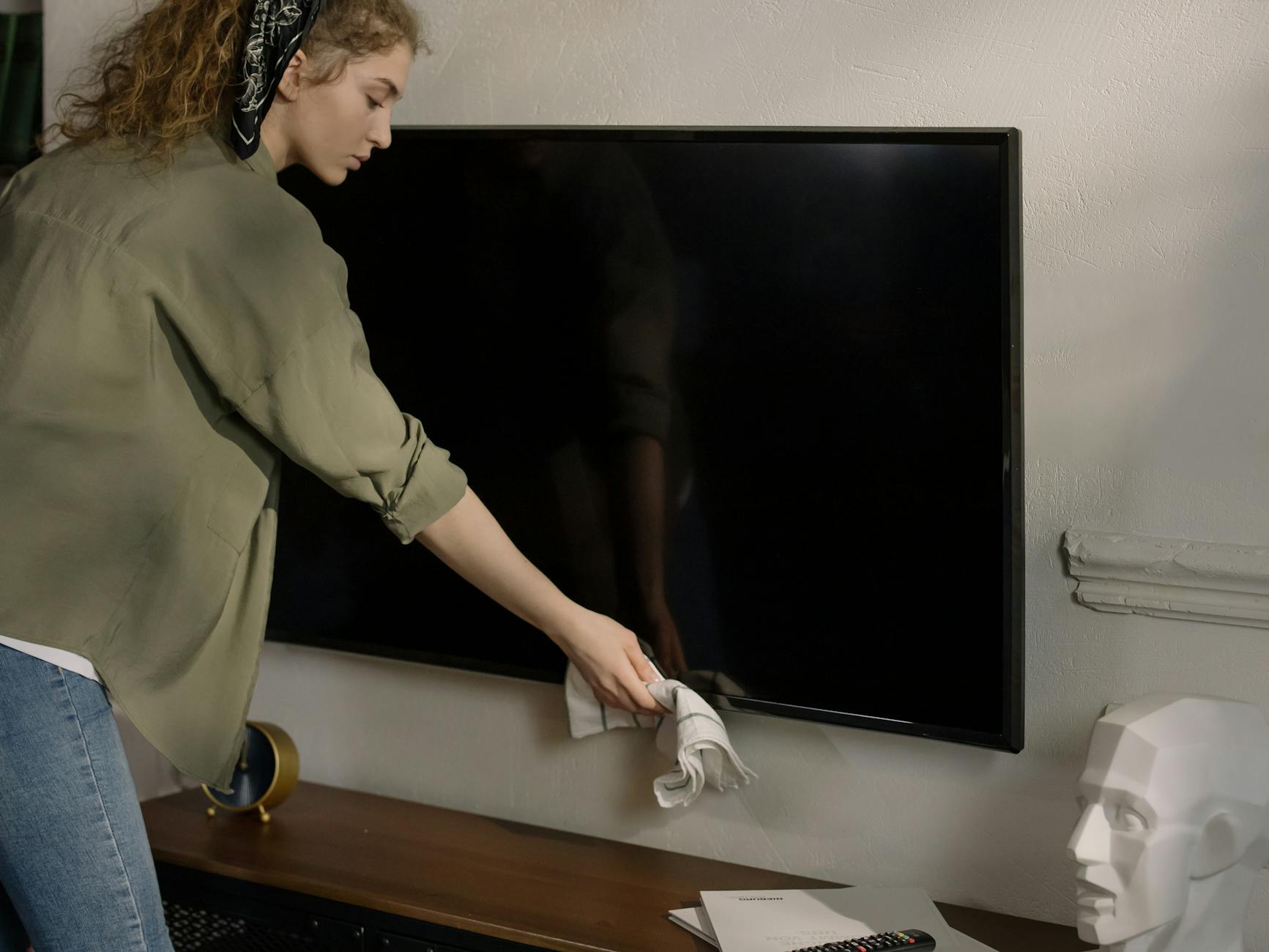
The process for cleaning a TV screen is almost identical to cleaning a monitor, but there are a few TV-specific considerations worth calling out when you want to know how to clean a TV screen safely.
Check your TV's manual first. Most major manufacturers — Samsung, LG, Sony, TCL — include specific cleaning instructions in their documentation. Samsung, for example, explicitly states that no liquids other than water should be used on their QLED and OLED screens. Following manufacturer guidance also keeps your warranty intact.
Never spray anything directly at the TV. The bezels, speaker grilles, and ventilation slots on TVs provide easy entry points for liquid. Any moisture that gets inside can cause corrosion on the internal components. Always apply liquid to the cloth, never to the screen itself.
Support the panel when wiping. Large TV screens — especially 55-inch and above — can flex if you press without support. Use one hand to gently brace the back of the screen panel while the other wipes. This prevents the display from wobbling on its stand and reduces the risk of pressure marks, particularly on OLED panels.
Don't forget the bezel and stand. The plastic or metal bezels around the screen can be cleaned with a lightly dampened cloth, but keep it away from the edge where the panel meets the frame. The remote control is often grimier than the screen itself — a slightly damp cloth or electronics-safe wipe handles remotes well.
Screen Cleaning Without Chemicals: When Dry Cleaning Is Enough
The idea of screen cleaning without chemicals isn't a compromise — for many screens and most cleaning situations, it's actually the preferred approach. Dry microfiber cleaning eliminates all risk of coating damage, liquid ingress, or residue. It's faster, requires no supplies beyond the cloth itself, and is safe for every display technology.
Build a habit of a quick dry-wipe weekly. A 30-second pass with a clean microfiber cloth, done consistently, means your screens rarely accumulate the kind of grime that requires a damp clean. Keeping a dedicated microfiber cloth folded near each screen makes this effortless.
The key word is clean microfiber. A cloth that has been used to wipe a kitchen counter, clean glasses, or dust furniture is no longer suitable for screens — it carries contaminants that will smear across the panel. Dedicate separate cloths to screen cleaning and wash them regularly in warm water without fabric softener (softener leaves a coating on the fibers that reduces their effectiveness).
Frequently Asked Questions
Key Takeaways
Cleaning a screen without streaks comes down to a handful of consistent principles. Use a high-quality microfiber cloth — nothing else. Apply any liquid to the cloth, never directly to the screen. Wipe in straight horizontal strokes, not circles. Always dry-buff immediately after any damp cleaning. And know your screen type before choosing a cleaning solution: what's safe on a glass-fronted LCD can permanently damage an OLED or matte anti-glare panel.
The most common mistake is reaching for a convenient household cleaner. Window sprays, kitchen surface wipes, and even some branded "screen cleaners" contain compounds that cause more harm than good over time. Distilled water costs almost nothing and works on every display type without risk. When combined with the right technique, it's genuinely all most screens ever need.
Following the seven-step method above consistently — cool screen, dust first, dry wipe, barely-damp cloth if needed, straight strokes, immediate dry buff, side-light inspection — will keep any screen looking sharp without streaks, smears, or coating damage for years.