What Is a Firewall and Do You Actually Need One at Home?
You've heard the word a hundred times. It pops up in antivirus ads, IT conversations, and the occasional news story about a data breach. But what is a firewall, really? And more to the point — does a regular person sitting at home actually need one, or is it a concern best left to corporate IT departments?
The answer is more nuanced than a simple yes or no. Understanding what a firewall does — and what it doesn't do — is one of the most practical pieces of network security basics any home user can learn. This guide breaks it all down in plain English, no technical degree required.
What Is a Firewall? (Plain English Version)
A firewall is a security system that monitors and controls the flow of network traffic — the data moving in and out of your devices or network. Think of it as a security checkpoint at the entrance to a building. Every car (data packet) that arrives must show its credentials before it's allowed through. Cars that don't meet the rules get turned away.
More precisely, a firewall uses a defined set of rules to decide which network traffic is allowed and which is blocked. Those rules can be based on:
- IP addresses — where the traffic is coming from or going to
- Ports — the numbered "doors" through which different types of traffic travel (web browsing uses port 80 and 443, email uses port 25, etc.)
- Protocols — the communication language being used (TCP, UDP, ICMP, and others)
- Application identity — on more advanced firewalls, which specific program is sending or receiving data
The concept dates back to the late 1980s, when engineers at Digital Equipment Corporation developed the first packet-filtering firewalls to protect early internet-connected networks. The name itself is borrowed from construction — a firewall is the physical barrier in a building designed to stop a fire from spreading from one section to another. The digital version does the same thing: it contains and controls the spread of threats.
How Does a Firewall Actually Work?
At its most fundamental level, every piece of data traveling across a network is broken into small chunks called packets. Each packet carries a header — a label that says where it came from, where it's going, which port it's headed for, and what protocol it's using. A firewall inspects these headers against its ruleset and makes a split-second decision: allow it, block it, or (on smarter systems) flag it for deeper inspection.
Over the decades, firewall technology has evolved through several generations:
- Packet-filtering firewalls — the original kind. They check packet headers only and apply simple allow/deny rules. Fast, but easy to fool.
- Stateful inspection firewalls — a significant upgrade introduced in the 1990s. These track the "state" of active connections, so they understand context. They know whether an incoming packet is genuinely a reply to a request your device made, or whether it's an unsolicited intrusion attempt.
- Application-layer (proxy) firewalls — these go deeper, actually examining the content of traffic, not just its headers. They can understand whether the data inside a web request looks legitimate.
- Next-generation firewalls (NGFW) — modern enterprise firewalls that combine stateful inspection with deep packet inspection, intrusion detection, and application awareness, all in one.
For home users, the firewalls you'll encounter are typically stateful inspection-based, either built into your router or running as software on your computer's operating system.

Hardware Firewalls vs. Software Firewalls
One of the most common points of confusion around home network firewall protection is the difference between hardware and software firewalls. Both do the same fundamental job, but they operate at different points in your network and offer different types of protection.
Hardware Firewalls
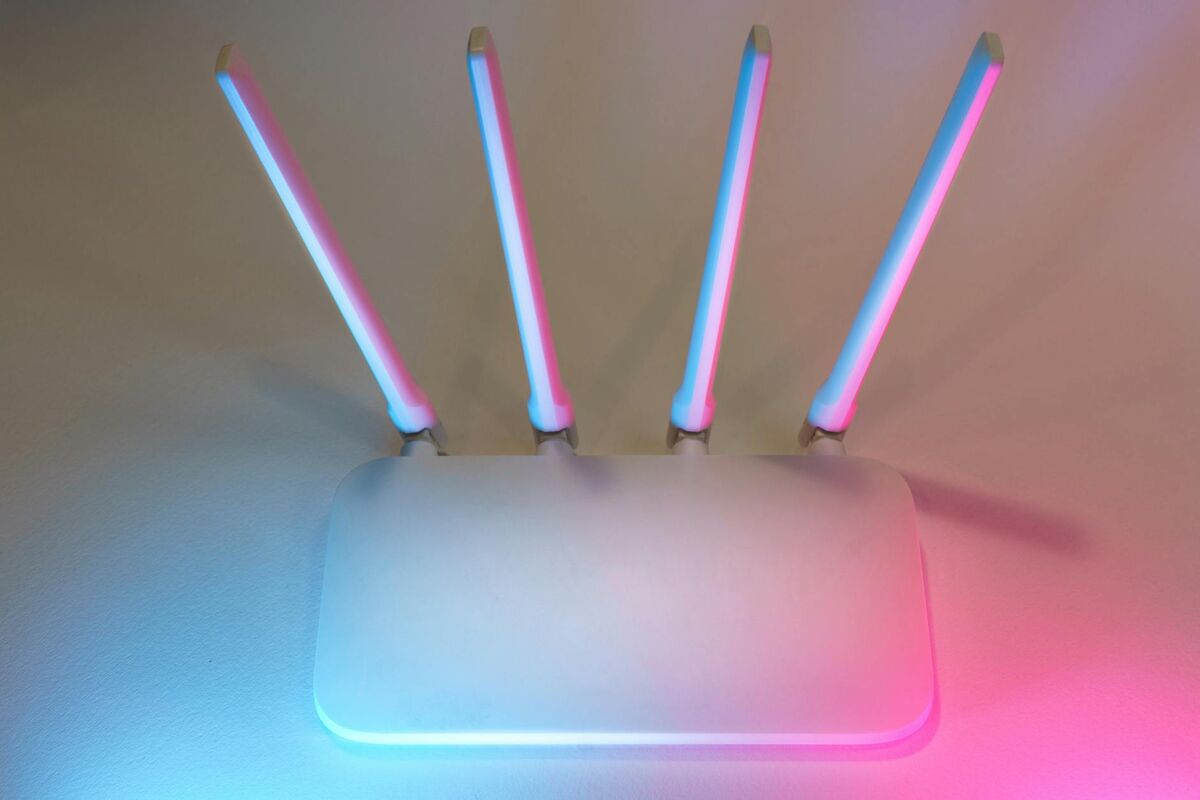
A hardware firewall is a dedicated physical device that sits between your internet connection and your home network. Your router almost certainly contains one. When data arrives from the internet, the router's built-in firewall inspects it before it ever reaches any device in your home.
Key characteristics of hardware firewalls:
- Protect every device on your network simultaneously — phones, laptops, smart TVs, game consoles, everything
- Always on, no configuration needed on individual devices
- Users never need to think about them once set up
- Cannot see what's happening between devices on the same network (internal threats can still spread)
- Typically only filter inbound traffic by default, not outbound
Software Firewalls
A software firewall runs directly on your computer or device. Windows has had a built-in software firewall since Windows XP (enabled by default since Windows XP Service Pack 2 in 2004). macOS has one too, though it is turned off by default and must be manually enabled in System Settings.
Key characteristics of software firewalls:
- Protect only the single device they're installed on
- Can monitor and control both inbound and outbound traffic, including which apps are making network connections
- Can detect suspicious behavior from applications already on your device
- Consume a small amount of system resources
- Can be disabled by malware if your system is already compromised
The best protection uses both layers together. Your router handles the perimeter, and your device's software firewall adds a second line of defense for traffic that makes it through — or that originates from within your network.
What Does a Firewall Protect Against?
Understanding what a firewall actually guards you against is just as important as knowing what it is. A firewall is primarily designed to stop unwanted network connections. In practical terms, this means it is effective against:
- Port scanning attacks — automated bots constantly scan the internet looking for devices with open ports that can be exploited. A firewall blocks these probes.
- Unsolicited inbound connections — if something on the internet tries to connect to your device without you initiating the conversation, a firewall will typically block it.
- Network worms — self-propagating malware that spreads by exploiting open network services. Firewalls were critical in limiting the damage of worms like Blaster and Sasser in the early 2000s.
- Certain Denial of Service (DoS) attacks — floods of traffic designed to overwhelm your connection can be partially mitigated at the router level.
- Unauthorized remote access — without a firewall, a device with Remote Desktop Protocol (RDP) or Telnet open could be accessed from anywhere on the internet. A firewall can block those ports entirely.
What a Firewall Does NOT Protect Against
This is the part most people don't hear enough. A firewall is not a cure-all, and treating it as one creates a false sense of security. Firewalls do not protect you from:
- Phishing attacks — if you click a malicious link in an email, a firewall won't stop the page from loading. Phishing lives at the application layer, not the network layer.
- Malware you download intentionally — if you install software that turns out to be malicious, the firewall sees it as legitimate traffic initiated by you.
- Encrypted malicious traffic — a basic firewall cannot inspect the contents of HTTPS traffic, so malware that communicates over encrypted channels can pass right through.
- Threats already inside your network — once malware is on one of your devices, a perimeter firewall offers no protection against it spreading to other devices on the same network.
- Social engineering — no technology stops a human being from being tricked.
- Zero-day exploits in trusted applications — if a legitimate program your firewall trusts is exploited, the firewall has no way to know.
This is why security professionals talk about "defense in depth" — using multiple overlapping layers of protection rather than relying on any single tool.
Do Home Users Actually Need a Firewall?
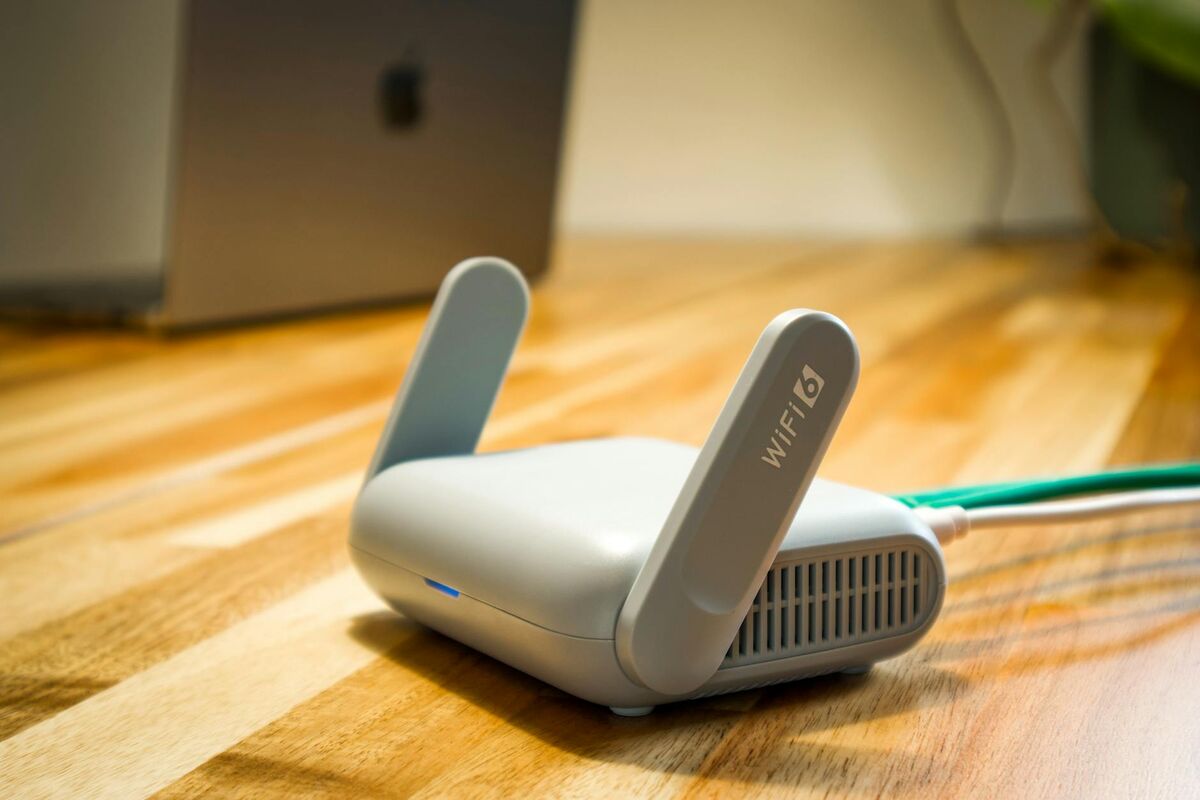
Here is the honest answer: if you have a broadband router at home — whether from your ISP or one you purchased yourself — you almost certainly already have a hardware firewall. It has been active since the moment you plugged the router in, and it is doing its job quietly in the background right now.
Consumer routers use a technology called Network Address Translation (NAT), which effectively hides all of your home devices behind a single public IP address. From the internet's perspective, your entire home network looks like one device. Any unsolicited inbound connection has nowhere to go — NAT doesn't know which internal device to send it to, so it drops it. This alone provides substantial protection against the most common automated attacks.
On top of that, most modern routers include a proper stateful inspection firewall that adds rule-based filtering on top of NAT. The combination means that the average home user is meaningfully protected at the network perimeter without doing anything extra.
For the software side, both Windows Defender Firewall (Windows 10/11) and the macOS Application Firewall are free, built-in, and reasonably effective for most home use cases. Windows Defender Firewall is on by default. If you're a macOS user, it's worth opening System Settings, navigating to Network, and enabling the firewall there if you haven't already.
When Should You Consider Additional Firewall Protection?
While the default setup is adequate for most households, there are specific situations where investing in more robust home network firewall protection makes sense.
You Work From Home With Sensitive Data
If you access corporate systems, client data, financial records, or patient information from home, the stakes are higher than for casual browsing. In this case, a dedicated hardware firewall appliance — or a router with enhanced security features and regular firmware updates — adds a meaningful layer of protection. Many employers will provide or require specific security configurations for home workers handling sensitive data.
You Have Many Smart Home Devices (IoT)
Smart TVs, security cameras, smart speakers, thermostats, and other Internet of Things devices are notoriously poorly secured. Many run outdated firmware, use weak default credentials, and rarely receive security patches. A router with strong firewall capabilities — ideally one that supports network segmentation, putting IoT devices on a separate "guest" network — significantly reduces the risk these devices pose to your computers and phones.
You Run a Home Server or Host Services
If you run a local media server, a game server, a home NAS (Network Attached Storage), or any service accessible from outside your home, you have open ports that need careful management. A dedicated firewall lets you control exactly which ports are exposed, to which IP ranges, and under what conditions — far more granular than the basic options on most consumer routers.
Your Router Is Old and No Longer Receives Updates
A router that hasn't received a firmware update in two or more years is a security liability, firewall included. If your ISP-provided router is aging, or you're still running hardware from 2018 or earlier, the built-in firewall may have known vulnerabilities that can be exploited. Replacing it with a modern router — or adding a dedicated firewall device in front of it — closes those gaps.

Checking and Improving Your Router's Built-In Firewall
Most people have never logged into their router's admin panel. If that's you, it's worth spending 10 minutes to check a few basic settings. Here's what to look for:
- Access your router admin panel — type your router's IP address into a browser (commonly 192.168.1.1 or 192.168.0.1). Check the label on the back of your router for the exact address and default login credentials.
- Change the default admin password — if you're still using the factory default (often something like "admin/admin"), change it immediately. This is one of the most overlooked vulnerabilities in home networks.
- Verify the firewall is enabled — look for a "Firewall," "Security," or "Advanced" section. Most routers have a firewall toggle that should be set to "On" or "Enabled."
- Check for firmware updates — find the firmware version and look for an update option. Keeping your router's software current is one of the highest-impact security actions you can take.
- Disable remote management — unless you specifically need to access your router from outside your home, this feature should be off. It's a common attack vector.
- Review port forwarding rules — if you or someone else added port forwarding rules at some point, audit them. Delete any you no longer need.
Firewalls and the Broader Security Picture
A firewall is a foundational piece of network security basics, but it works best as part of a layered approach. Think of your home security in concentric rings:
- Outer ring (network perimeter) — your router's hardware firewall blocks unsolicited connections from the internet
- Device layer — your operating system's software firewall monitors traffic on each individual device
- Application layer — antivirus and anti-malware software scans files and processes for known threats
- Behavior layer — good digital hygiene: strong unique passwords, two-factor authentication, keeping software updated, and healthy skepticism about unexpected emails and downloads
Of all these layers, the behavioral one matters the most for the average person. The vast majority of successful home network attacks don't bypass firewalls through clever technical exploits — they bypass them because a user clicked something they shouldn't have. No firewall can fix that.
That said, dismissing firewalls as unnecessary is equally misguided. They stop a constant, automated background noise of probes and scanning attempts that most internet-connected devices face every day. The reason you probably haven't experienced a direct exploitation attempt is, in large part, because your router's firewall turned thousands of those attempts away silently.
FAQ: Firewall Basics
Key Takeaways
If there is one thing to take from this guide, it's that firewalls are not mysterious enterprise technology — they are already part of your daily life, running quietly inside your router and operating system. Here is a quick summary of everything covered:
- A firewall is a system that monitors and controls network traffic based on defined security rules, acting as a checkpoint for data entering and leaving your network.
- Hardware firewalls (in your router) protect your entire network perimeter. Software firewalls (on your PC or Mac) protect individual devices and monitor outbound traffic too.
- If you have a home broadband router, you already have a hardware firewall active right now — NAT plus stateful inspection provides solid baseline protection.
- Firewalls stop unsolicited inbound connections and port-scanning attacks, but they do not stop phishing, social engineering, malware you intentionally install, or threats already inside your network.
- Most home users do not need to purchase additional firewall software or hardware, but should confirm their router's firewall is enabled, keep firmware updated, and change default admin passwords.
- Additional protection is worth considering if you work from home with sensitive data, have many IoT smart home devices, run a home server, or are using aging router hardware.
- The single highest-impact security habit is not any technology — it's human behavior: skepticism about unexpected links and downloads, strong unique passwords, and keeping all software current.
Understanding your home network firewall — and where its limits lie — puts you in a far stronger position than most home internet users. You don't need to become a security expert. You just need to know what tools you already have, confirm they're configured correctly, and complement them with sensible digital habits. That combination covers the vast majority of threats the average household will realistically face.